
🕵️ LinkedIn Job Search and Apply Agents with Claude Code — A Human-in-the-Loop Multi-Agent Pipeline
How a multi-agent LinkedIn job-search pipeline works, step by step, with a human holding final say over what gets sent — for readers who want the full picture without reading code.
It’s not one agent — it’s a small team of specialized agents, each with one job, built entirely from Claude Code skills, commands, and subagents, driven by Claude in Chrome so it can use the real LinkedIn and ATS websites the same way you would. The full source is on GitHub: AI-Code-Geek/linkedin-job-agents.
💡 TL;DR
- Step 1: an agent searches LinkedIn and scores every result against your resume. Read-only, fully automatic.
- Step 2: you look at the shortlist and mark the jobs you actually want. Nothing happens without this.
- Step 3: a second agent tailors your resume, fills out each application, and figures out — per job — whether it needs a Workday specialist or can be filled inline.
- The one rule that never bends: no agent, ever, clicks the final “Submit.” Every application is left ready for you to send yourself.
If you want the code-level walkthrough — agent config files, the skill internals, the exact routing table — that’s a companion technical post. This one is the map.
Table of Contents
- The Problem, in One Paragraph
- The Solution, at a Glance
- How It Works, Step by Step
- The Building Blocks, in Plain Terms
- What Claude in Chrome Actually Does Here
- The One Rule That Makes This Safe
- Frequently Asked Questions
1. The Problem, in One Paragraph
Job searching has very little hard work in it and a lot of repetitive work: run the same search across a few titles, skim dozens of descriptions to find the handful that fit, adjust your resume for each one, then re-enter your name, address, and work history into yet another form. It’s the kind of task where a human’s judgment matters at exactly two points — is this job worth applying to? and is this application ready to send? — and matters much less for everything in between. That gap is what this system automates, and only that gap.
2. The Solution, at a Glance
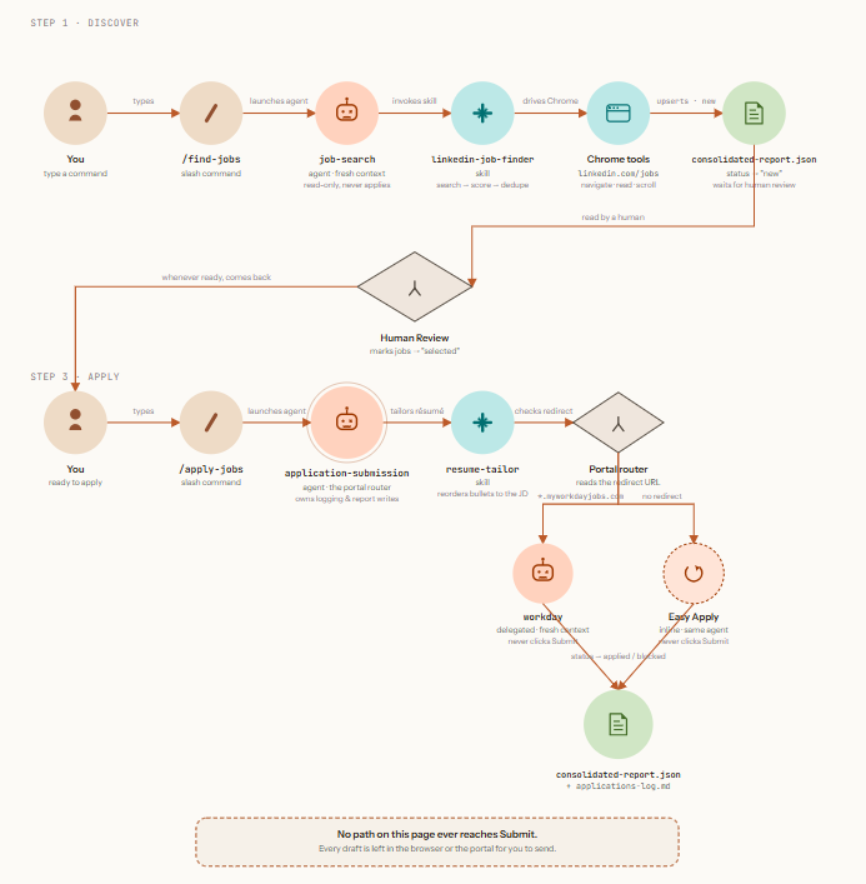
Read it left to right, top to bottom: a command you type kicks off an agent, which calls a skill for the reusable part of the work and tools (the real browser) to actually do it. That same three-layer pattern runs twice — once to discover jobs, once to apply to them — with a human checkpoint bridging the two, and a second checkpoint (Submit) that’s never automated at all.
3. How It Works, Step by Step
🔍 Step 1: You Ask It to Find Jobs
You run one command — /find-jobs — optionally with extra titles or a location for that run. A discovery agent takes it from there:
- Reads your saved search preferences (titles, locations, remote/hybrid/on-site, how far back to search, seniority, an “Easy Apply only” toggle, companies/keywords to exclude).
- Opens LinkedIn in your actual, already-logged-in browser and runs the searches.
- Reads every result card the same way you’d skim them — title, company, location, posted date.
- Scores each one against a profile built from your real resume (not just keyword matching — it checks seniority fit, core domains, and title similarity), and sorts them Strong / Good / Possible.
- Adds only the new, qualifying ones to a shortlist file, and never touches a job it’s already surfaced before.
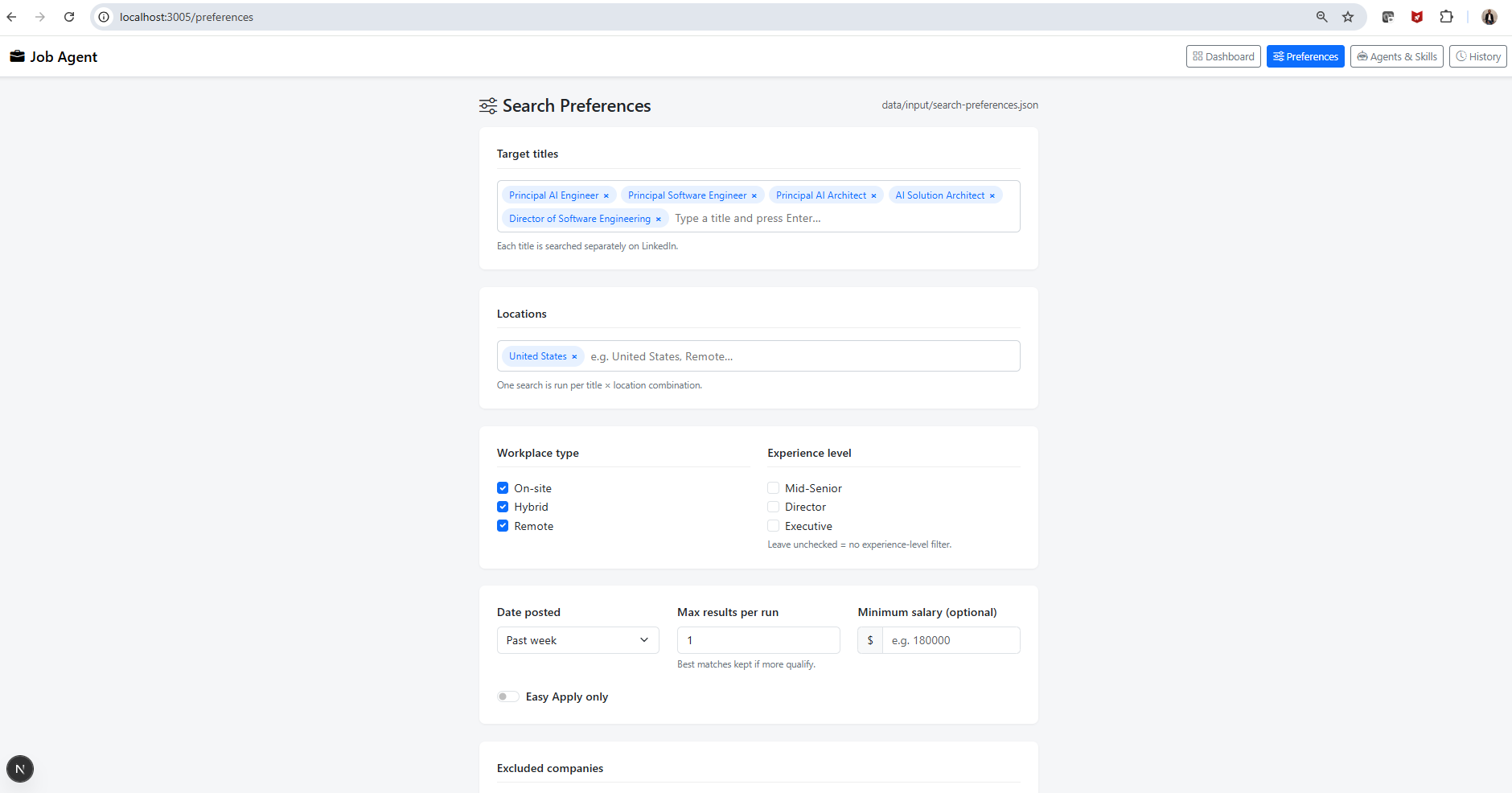
The discovery agent reads these preferences before it ever opens a search tab — target titles, locations, workplace type, experience level, and an Easy Apply toggle, all stored in data/input/search-preferences.json.
💡 Callout: This entire step is read-only. It never clicks Apply, Save, or anything else on your account, and if it can’t tell you’re logged into LinkedIn, it stops and tells you rather than guessing.
✅ Step 2: You Review the Shortlist
This is the first checkpoint, and it’s manual on purpose. You open the shortlist and mark the jobs you actually want pursued as selected. Nothing marked new gets touched by the next step, and nothing you decide gets forgotten — even jobs you pass on stay on record, so the search agent never shows them to you twice.
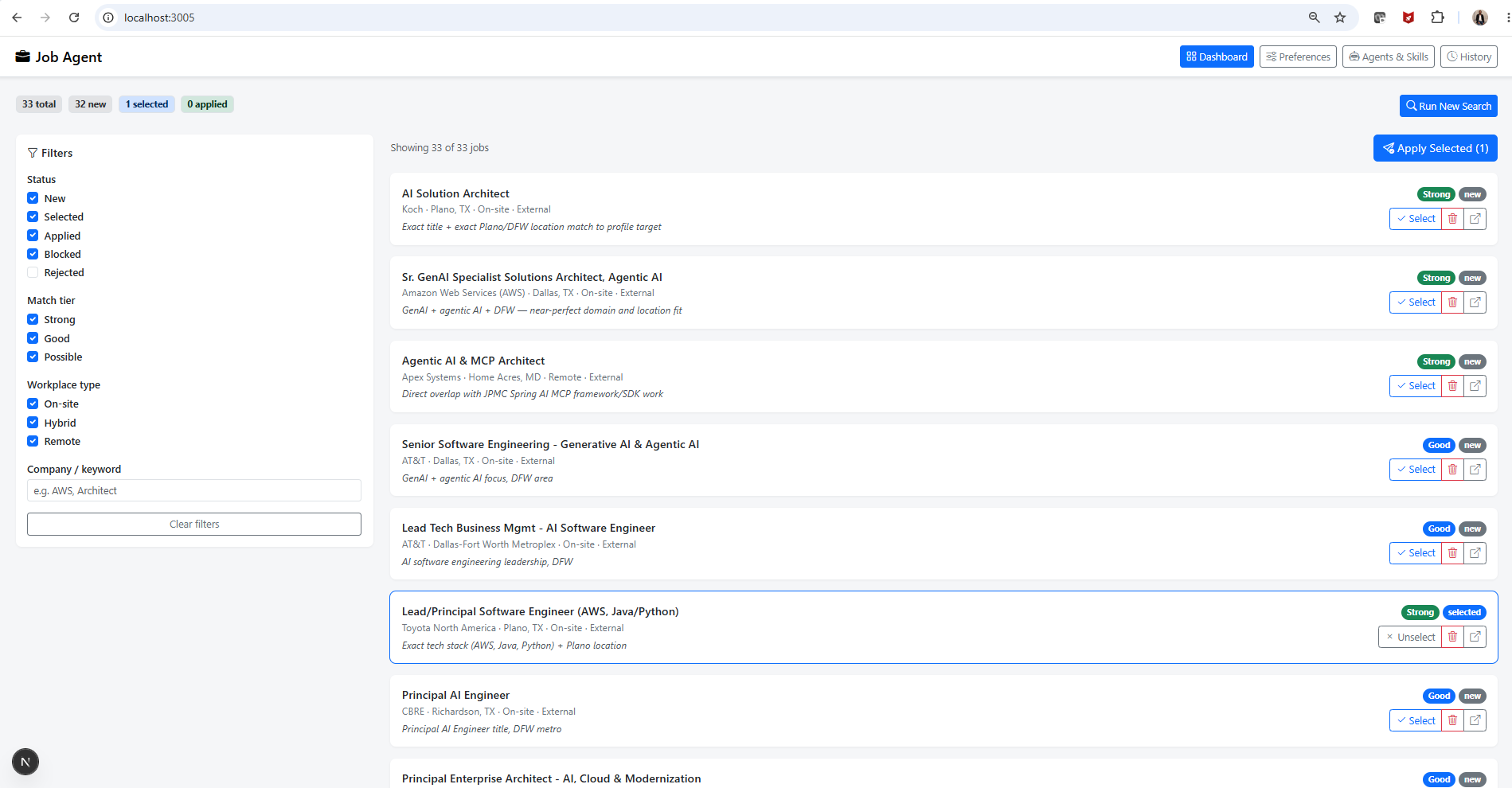
Every scored job lands here with a Strong / Good / Possible tag and a one-line reason for the match. Nothing moves to Step 3 until you click Select.
📝 Step 3: You Ask It to Apply
You run a second command — /apply-jobs — and a submission agent picks up every job you marked selected. This one’s smarter than a simple form-filler, because different job sites work differently:
- It tailors your resume for each job — reordering and re-emphasizing your real bullet points to match that specific posting, never inventing a skill or a metric you don’t actually have.
- It figures out which site it’s dealing with. LinkedIn’s own “Easy Apply” never leaves the page, so it fills that directly. But most postings redirect to an outside system — usually Workday — which has its own account, its own resume-autofill feature, and its own quirks.
- For Workday, it calls in a specialist. Rather than one agent trying to know everything about every job site, the submission agent hands Workday jobs to a second agent that does nothing else — sign in or create an account, run Workday’s autofill and double-check what it filled, answer the standard work-authorization questions, and save its way through every page.
- Whatever the site, it stops at the same line: right before Submit. The finished application sits open in your browser or saved as a draft in the portal, waiting for you.
- If anything needs a real judgment call — a CAPTCHA, an open-ended salary question, an assessment — it stops on that one job, notes why, and moves to the next rather than guessing.
- Every outcome is logged and the shortlist is updated, so you always know what’s ready to send and what needs your attention.
✋ Step 4: You Hit Submit Yourself
This is the second checkpoint, and it’s the whole point of the design — more on why in Section 6.
4. The Building Blocks, in Plain Terms
| Piece | Think of it as… | Example from this project |
|---|---|---|
| Command | A button you press | /find-jobs, /apply-jobs |
| Agent | A specialist with their own desk and their own memory of just this one task | the discovery agent, the submission agent, the Workday specialist |
| Skill | A recipe any agent can follow | “how to search LinkedIn and score results,” “how to tailor a resume” |
| Claude in Chrome | The specialist’s hands and eyes on your actual browser | opening tabs, reading pages, clicking, typing, uploading a file |
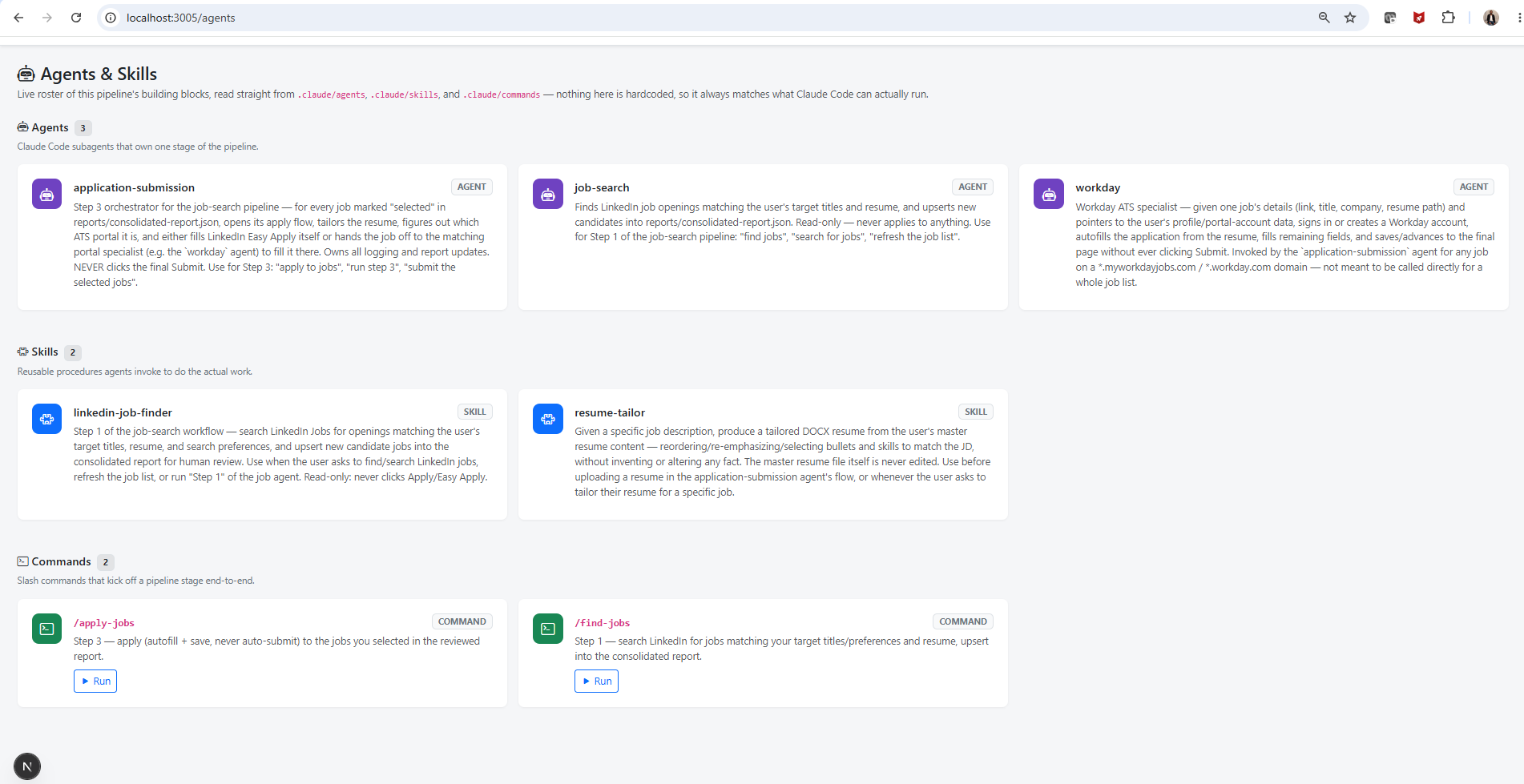
The pipeline’s own live roster, read straight from .claude/agents, .claude/skills, and .claude/commands — so it always matches what Claude Code can actually run.
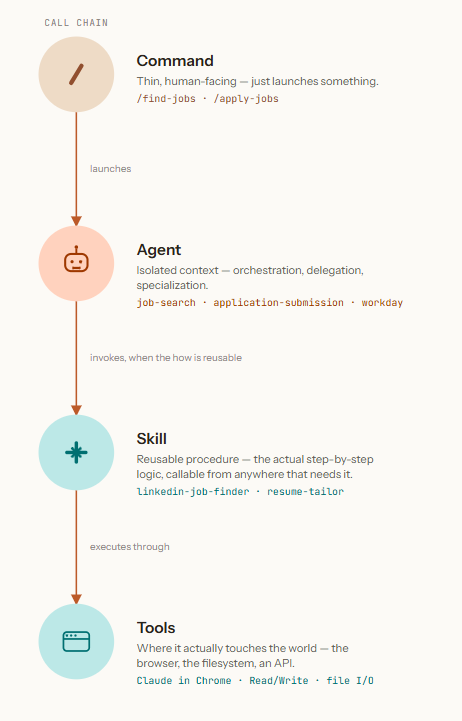
The same call chain, every time: a command launches an agent, the agent invokes a skill when the “how” is reusable, and the skill executes through tools — Claude in Chrome, file reads/writes — to actually touch the world.
The reason this is several agents instead of one is the same reason a company has more than one employee: each one can be narrowly scoped, trusted with only what it needs, and swapped out or improved without touching the others. Adding support for a new job site later (Greenhouse, iCIMS) means writing one new specialist — not rewriting everything.
5. What Claude in Chrome Actually Does Here
This is the part that makes it real instead of theoretical: Claude in Chrome drives your actual browser, in your actual, already-logged-in session. Concretely, the agents use it to:
- Open pages — a LinkedIn search, a job posting, wherever “Apply” redirects to.
- Read pages — pull out job titles, descriptions, and form fields the way you’d read them.
- Click and type — fill in forms, click buttons, scroll through results.
- Upload files — attach the tailored resume.
- Keep track of open tabs — so if the discovery agent’s session check finds you’re already logged in, it reuses that tab instead of trying to log in itself; and if the submission agent hands a job to the Workday specialist mid-flow, the specialist picks up in the same browser tab instead of losing its place.
Because it’s driving the same browser you use, there’s nothing to keep in sync with LinkedIn’s markup, no separate password storage, and no fight with bot-detection — it’s doing, mechanically, what you’d do by hand.
6. The One Rule That Makes This Safe
Every agent in this system, without exception, follows the same instruction: never click the final Submit. Not a soft preference — a hard stop built into every layer.
Here’s why that one rule matters more than anything else in the design: an agent that can be wrong about a salary question, misjudge a CAPTCHA, or misread an ambiguous field is fine, as long as being wrong just means you catch it during a two-second review before sending. An agent that’s wrong about those same things and also submits on your behalf is a real liability. So the entire system is built to front-load everything that’s safe to automate — reading, matching, tailoring, filling, saving — and leave the one truly irreversible action exactly where it belongs: with you.
7. Frequently Asked Questions
Will it ever apply to a job without me knowing?
No. Nothing gets applied to until you mark it selected in the review step, and even then, “applied” means a draft is sitting ready — not sent.
What happens if it hits a CAPTCHA or a weird question? It stops on that job, records why, and moves on to the next one rather than guessing. You’ll see it flagged when you review the results.
Does it work on job sites other than Workday? LinkedIn’s own Easy Apply is handled directly. Other outside sites (Greenhouse, iCIMS, and similar) currently fall back to a generic best-effort fill; Workday got its own specialist because it’s by far the most common site these searches turn up.
Can it accidentally mess up my LinkedIn profile? No — the discovery agent is read-only by design (it can search and read, nothing else), and the submission agent’s LinkedIn access is limited to the Easy Apply flow for jobs you specifically selected. Neither one edits your profile, posts, connections, or saved items.
Does it invent things on my resume? No. Resume tailoring only reorders and re-emphasizes your real experience to match a job description — it never adds a skill, employer, or accomplishment that isn’t already true.
Want to Build Something Like This?
The full agent configs, skills, and commands behind this pipeline are open source: github.com/AI-Code-Geek/linkedin-job-agents. A companion technical post covers the exact agent files, the skill internals, and the routing logic in detail. The short version of the pattern, if you’re taking one thing away: keep commands thin, give each agent one clear job, put anything genuinely reusable in a skill, and — whatever you automate — decide up front which single action a human always keeps for themselves.
Built entirely with Claude Code skills, commands, and subagents, driven by Claude in Chrome.